User Guide · 03
Group Library: Finding, Importing & Tagging Facebook Groups
Where Facebook groups come from: login sync, keyword or AI search, importing a group library. Reading group cards, automatic area and type detection, your own tags — and why being in the library isn't the same as having joined.
Updated 2026-10-186 min readFor app v1.7.3

The Group Library is the list of all your groups: which ones you can post to, which area, what type, which of your accounts are in them. When you pick groups for a campaign, you pick from here.
3.1 Where groups come from
The three small cards at the top of the page describe the three ways:
- Automatic sync when an account logs in (the main one): the groups an account has already joined sync in automatically, and posting permission is checked. Nothing to do.
- Find more groups: 「Find more groups」 at the top right searches Facebook by keyword → import → add to the join queue. Joining is paced slowly to stay under Facebook's radar, so you can't post immediately.
- Import a library someone else organized: 「Manage」 → 「Import library」 imports a
.jsongroup pack from your company or upline, with area and type tags included.
You can also 「Add Group」 by pasting a group link.
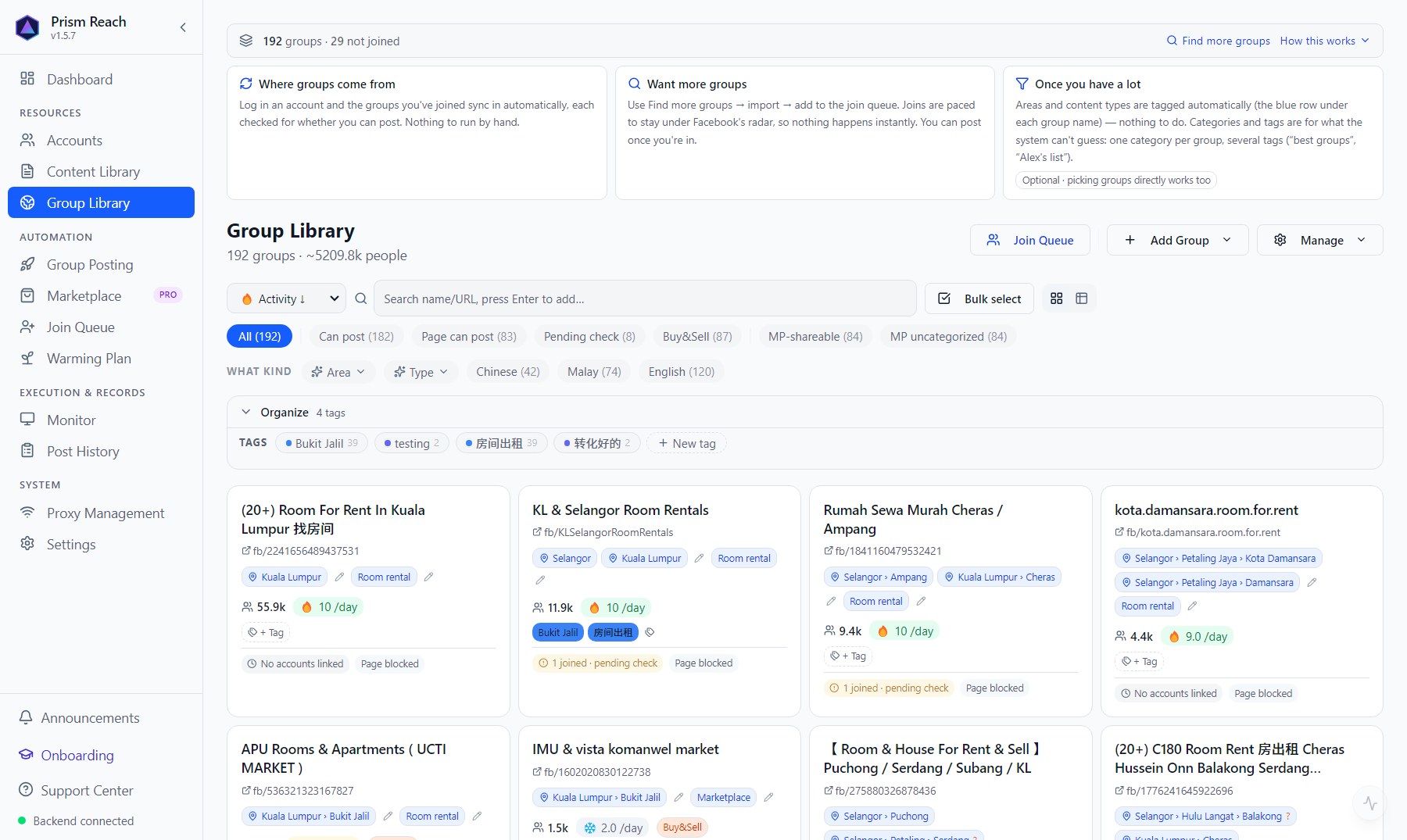
3.2 Reading the Group Library
Filters along the top: All / Can post / Page can post / Pending check / Buy & Sell / MP-shareable … each with a count.
「What kind」: filter by Area, Type, language.
「Organize」 row: your own tags — click one to show the groups with that tag; 「+ New tag」 creates one.
On each group card:
- Group name, link, member count, roughly how many posts a day (activity)
- Blue area / type chips: detected automatically from the group name (e.g. "Kuala Lumpur · Bukit Jalil", "Room rental")
- Which accounts are in it and whether they can post: 「N accounts can post」, 「joined · pending check」, 「No accounts linked」
- 「Page blocked」: checked before — a Page can't post in this group
- 「+ Tag」 to tag this group
3.3 Areas and types (detected) + tags (yours)
- Areas and types are detected automatically from the group name: which area it covers, rooms or whole units, rent or sale. Newly synced and imported groups are detected automatically; you can also re-run it for the whole library via 「Manage」 → 「Detect areas & types」. "Let the app pick" in the group picker relies on this.
- Tags are your own judgement — things the app can't guess: "converts well", "Alex's groups", "whole units only". Click 「+ Tag」 on a card, or use 「Bulk select」 to tag many at once; rename or delete them under 「Manage」 → 「Tag management」.
- Once you've tagged groups, switch the picker to 「Use my own tags」 and it picks by your tags only — the app's area/type guesses stay out of it.
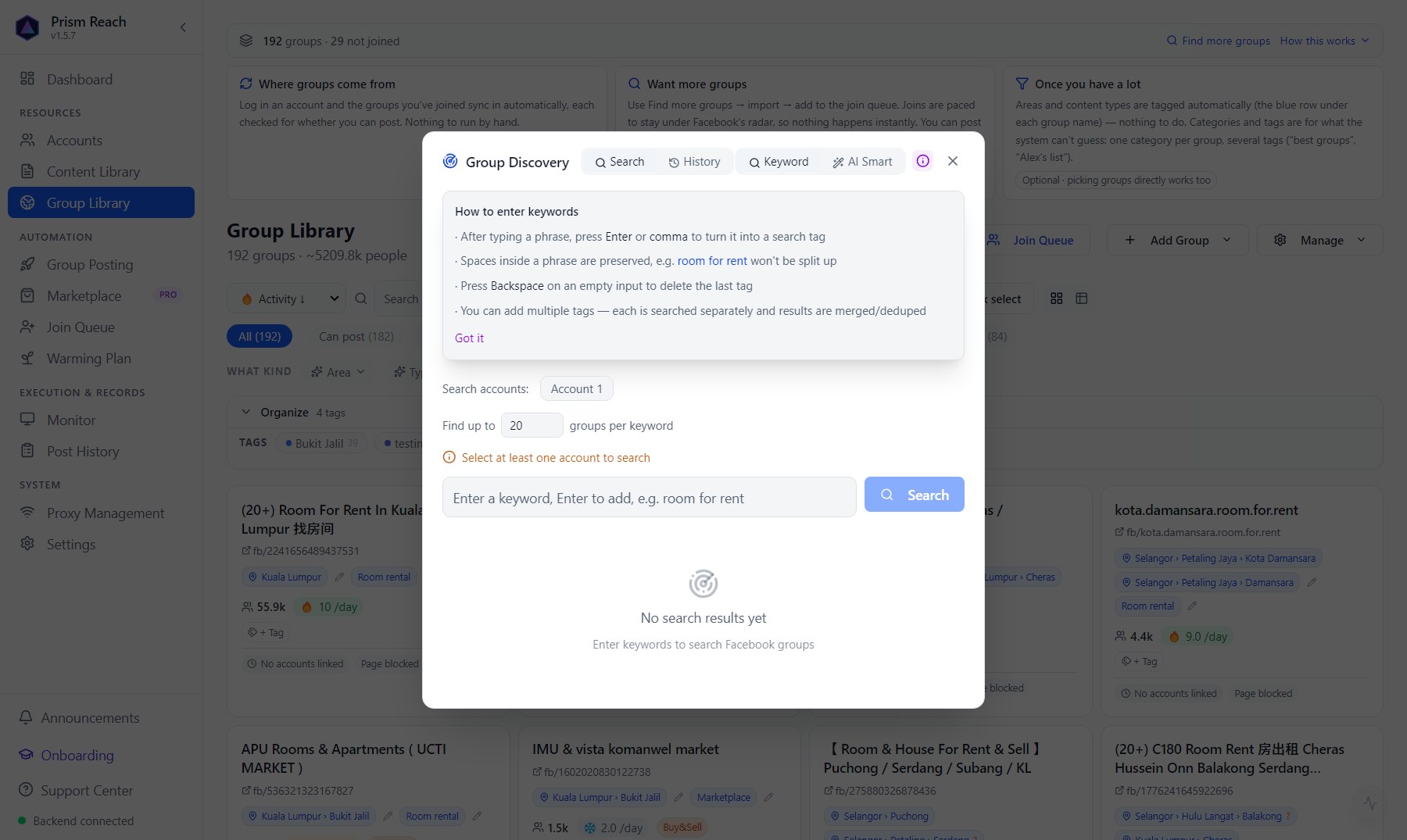
3.4 Find more groups (Group Discovery)

「Add Group」 → 「Group Discovery」, or 「Find more groups」 at the top:
- Choose which account(s) to search with (Search accounts) — several accounts search in parallel, faster; set how many groups to find per keyword.
- Type keywords and press Enter to turn each into a chip (e.g.
bukit jalil room,bilik sewa bukit jalil); each is searched separately and the results are merged and de-duplicated. If you don't know what to search for, switch to 「AI Smart」 and describe the groups you want in one sentence. - Each result shows member count, posts per day, and the detected area and type; groups already in your library are marked 「Already in library」.
- Filter before importing: use 「Filter results」 on the left (area / type / language) to drop unrelated groups — e.g. searching "Bukit Jalil" also brings in job and community groups.
- Tag while importing: 「Tag on import」 — tags whose name matches your keywords are ticked automatically; use 「Pick tags」 → 「+ New」 to add your own (e.g. "new batch"). Applies to single and bulk imports.
- Tick and 「Bulk import」; every row has 「Undo」 if you imported the wrong one.
- Queue them to join in one click: 「Queue all imported」 opens the join wizard with this batch already selected, straight at the account step — no need to pick them again in the Group Library. A single group can use its 「→ Queue」 button.
After importing, you still need to join before you can post — see 04 · Join Queue.
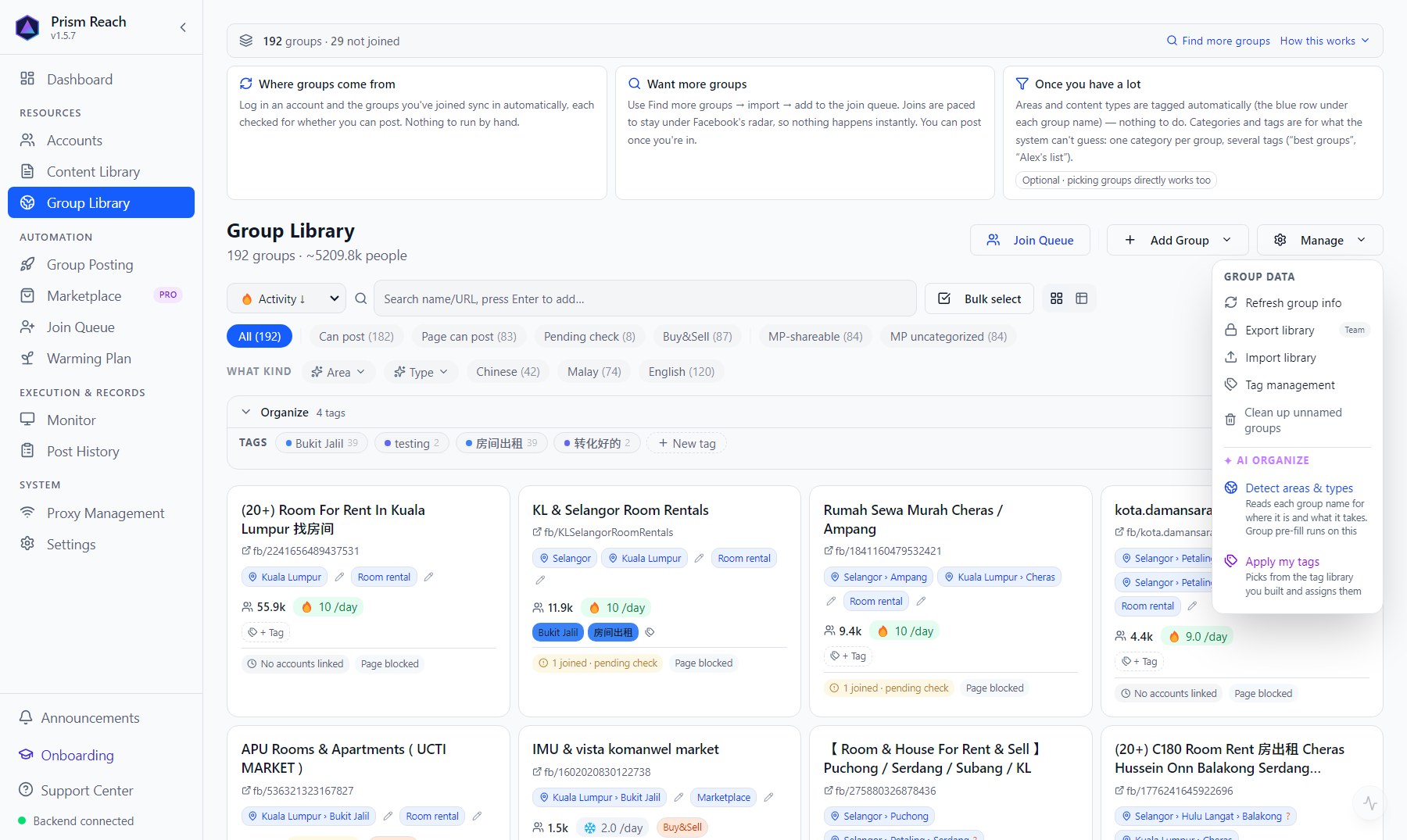
3.5 The 「Manage」 menu
- Refresh group info: update member counts and activity.
- Export library: Team plan.
- Import library: import a
.jsongroup pack. Groups already in your library aren't duplicated — the pack's tags are simply added to them (only added, existing tags untouched). So it makes no difference whether you add your accounts first or import the pack first. - Tag management.
- Clean up unnamed groups.
- AI organize: 「Detect areas & types」, 「Apply my tags」 (learns from the tags you've used and applies them).
3.6 Clean up groups you don't need (Archive)
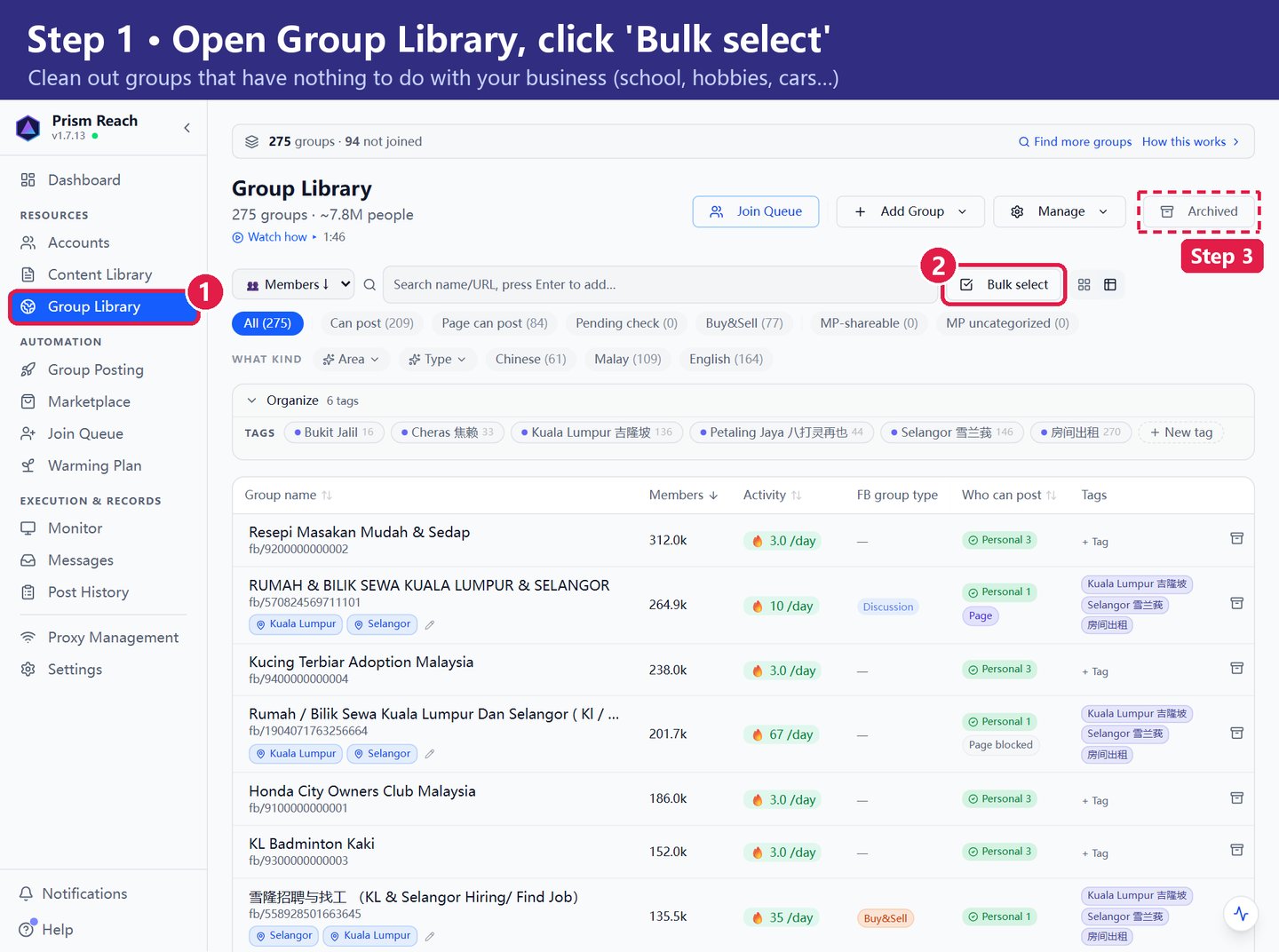
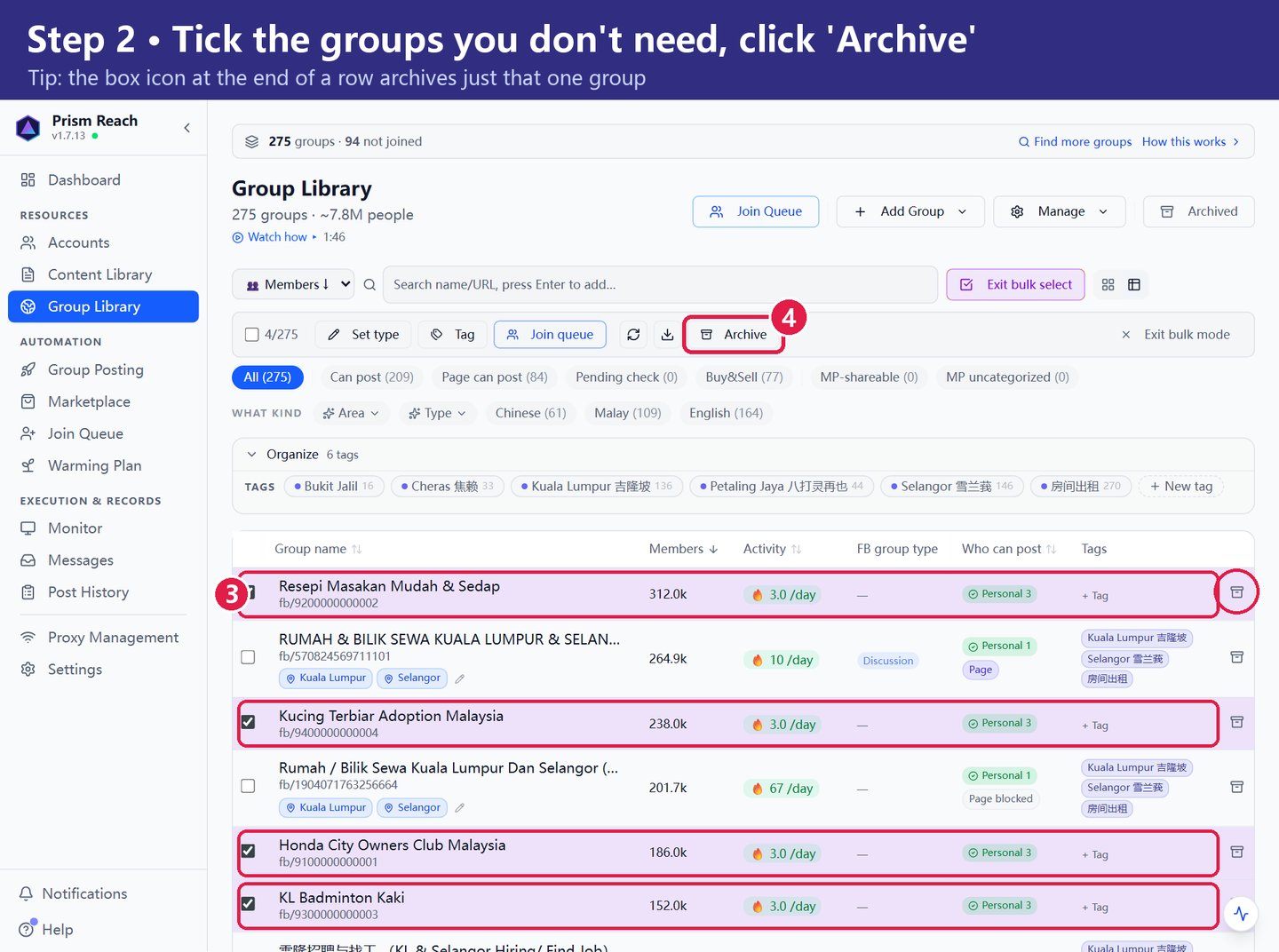
When you add an account, every group it's already in comes along — school friends, hobby groups, car clubs, recipe groups. They have nothing to do with your business, so move them out of the way with Archive.
- Open Group Library in the left menu and click Bulk select.
- Tick the groups you don't need, then click Archive in the toolbar. To archive just one group, click the box icon at the end of its row.
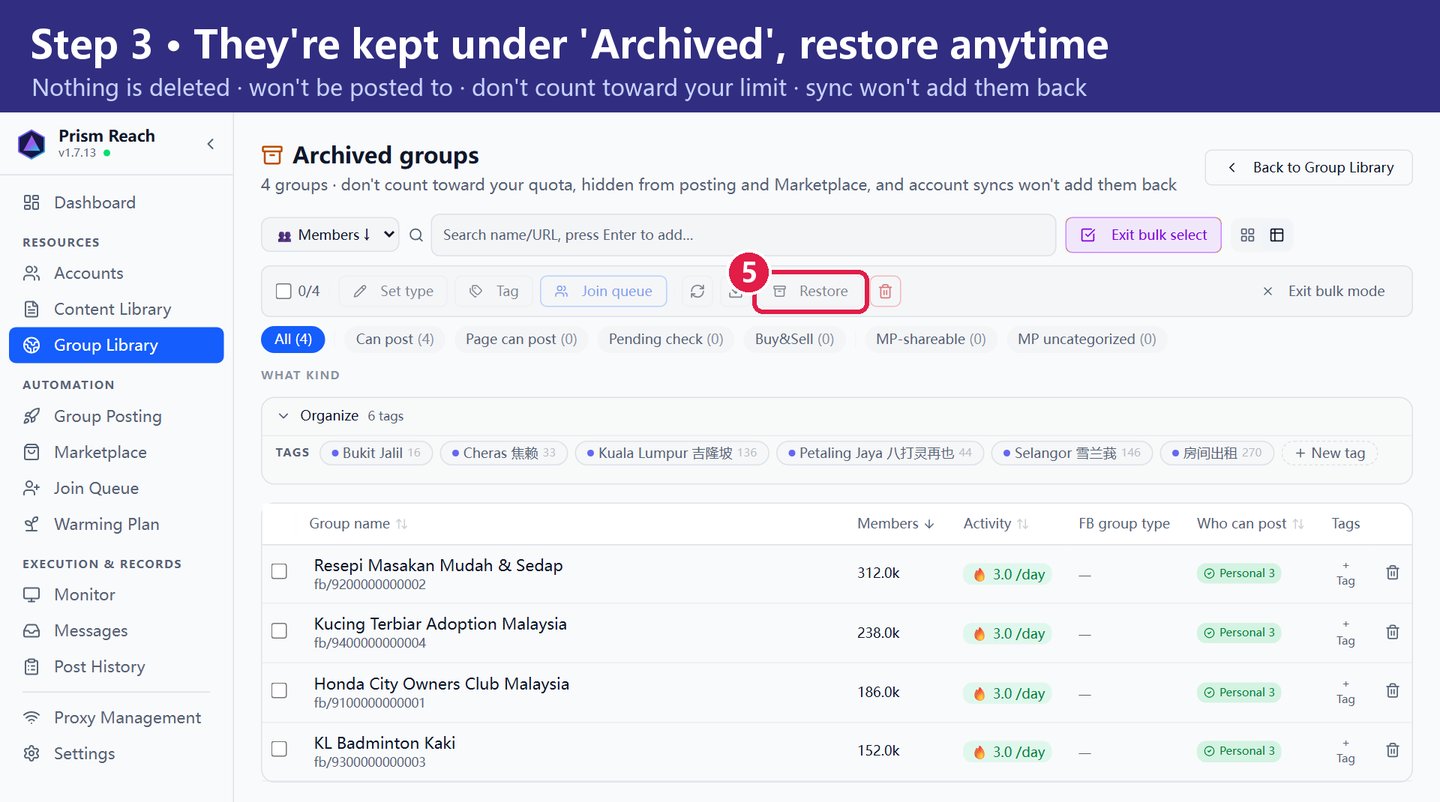
- They're all kept under Archived (top right of Group Library). Tick one and click Restore to bring it back.
What archiving does:
- Nothing is deleted. You can restore any group anytime.
- They won't be posted to, and they disappear from the group pickers in campaigns and Marketplace.
- They don't count toward your plan's group limit.
- Syncing won't bring them back — the next account sync skips archived groups.
3.7 In your library ≠ joined
Important: groups added via "Find more groups", "Import library" or "Add Group" are only on your list — your account is not a member yet, and it's unknown whether you can post there. Join first.
Continue with 04 · Join Queue.
Don't have Prism Reach yet?
The free plan needs no credit card — install it and follow this guide.