User Guide · 02
Creating & Managing Content: WhatsApp Links, Listing Import, AI Rewrites, Watermarks
Using the Content Library: set your WhatsApp number once for automatic links, import listings from Mudah / iBilik / iProperty, AI anti-duplicate rewrites and Spin Text, three-level watermarks, Marketplace details and team packs.
Updated 2026-09-128 min readFor app v1.7.3
A content item = one post (text + photos/videos). Save it once and reuse it across groups and campaigns.
2.1 The Content Library at a glance
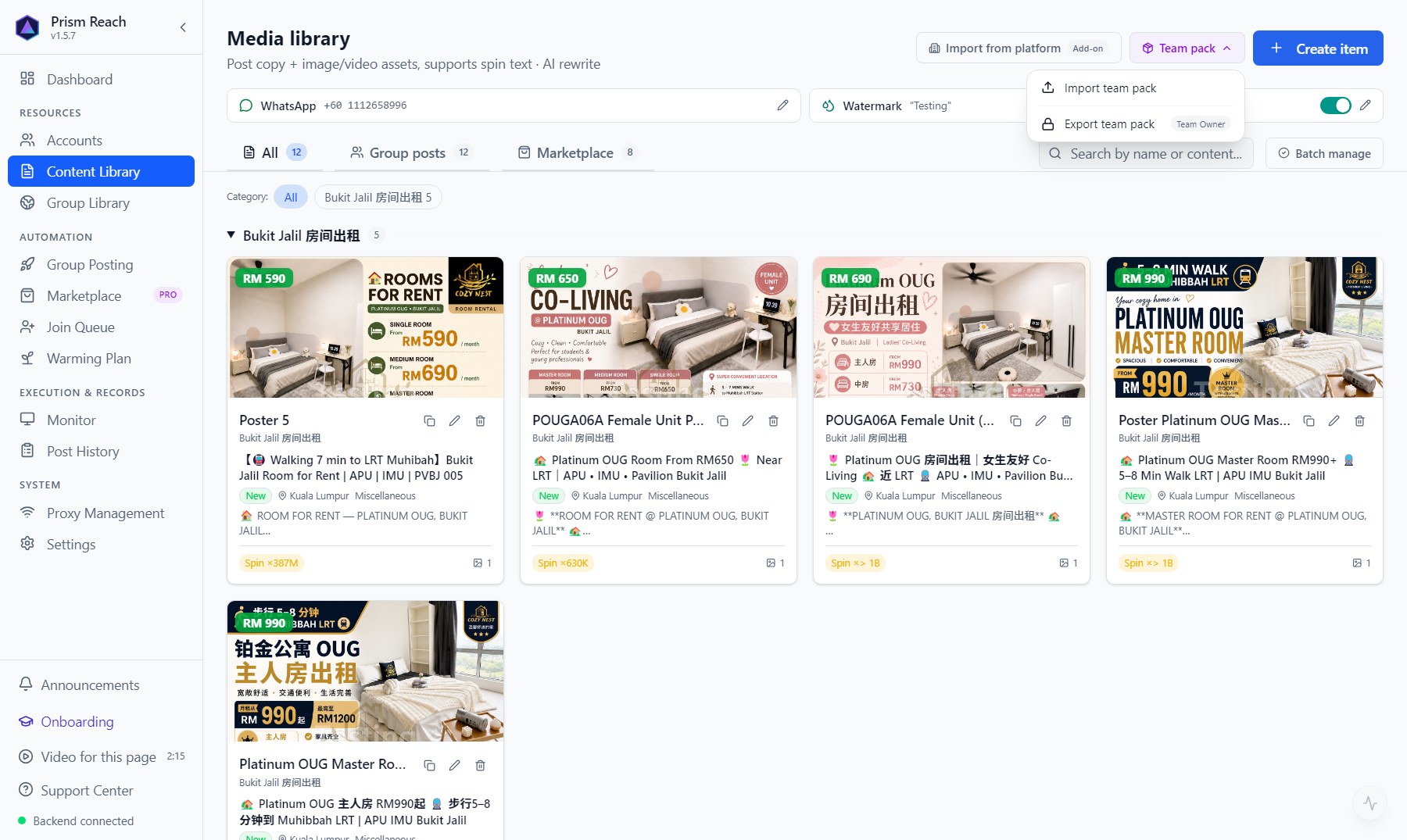
Content Library:
- Top row: the 「WhatsApp」 default number and the 「Watermark」 defaults — set each once and every post uses them.
- Top right: 「Import from platform」, 「Team pack」, 「Create item」.
- Tabs: All / Group posts / Marketplace; below that you can filter by content category.
- Each card shows the start of the text, the area, and the number of Spin combinations; you can duplicate, edit or delete it.

2.2 Set your WhatsApp number once
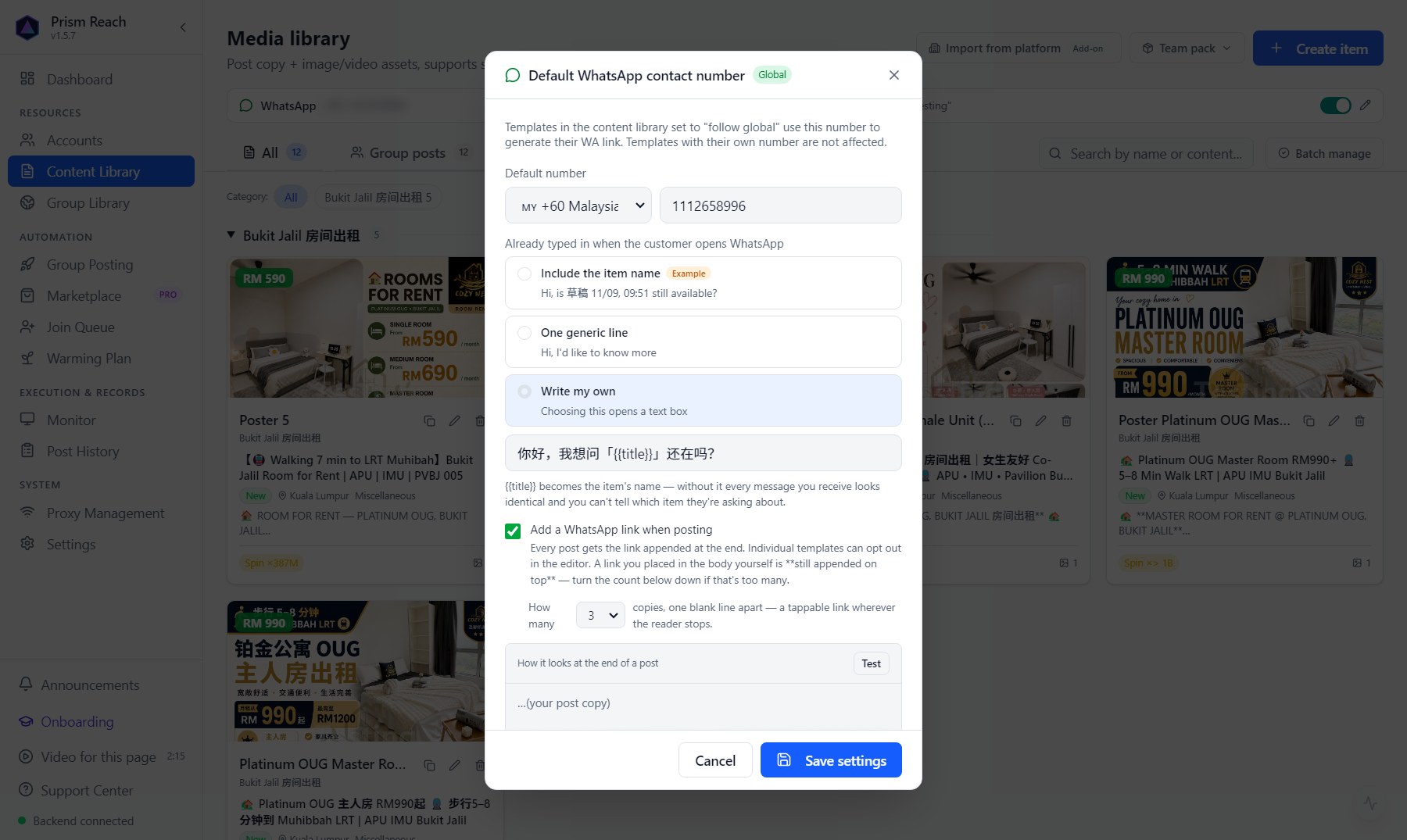
Click 「WhatsApp」 in the top row:
- Default number: choose the country code and enter your number.
- Message pre-filled when the customer opens WhatsApp: include the item name (so you know which listing they're asking about) / one generic line / write your own.
- Add a WhatsApp link when posting: when ticked, every post gets a tappable WhatsApp link at the end — you can choose how many copies (one blank line apart, so there's always one wherever the reader stops). Individual posts can opt out.
Every post set to "follow global" uses this number; posts with their own number aren't affected. To change your contact number later, change it here once.
Overriding the global setting on one post
Setting it once globally is enough for most people. When one post needs a different contact, change it in the WhatsApp box in the post editor:
- Follow global (default) — change the global number later and this post follows.
- Use another number — e.g. a colleague handles enquiries for this batch. Affects this post only.
- No link on this post — the card shows 「WhatsApp off」.
- How many links (「WhatsApp ×N」) — add a second one for long copy, so there's a link wherever the reader stops.
- The pre-filled message can also follow global or be written just for this post.
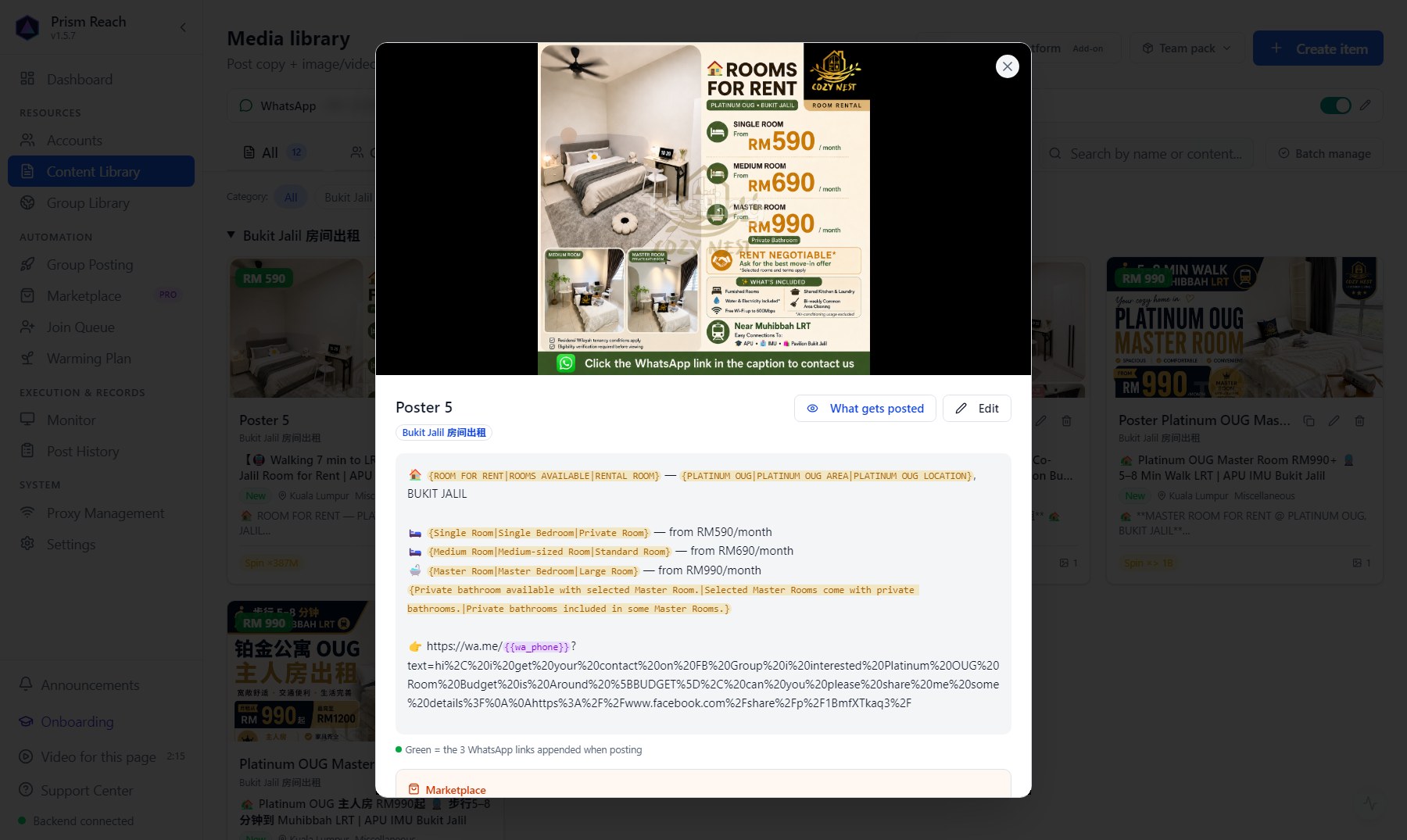
In the preview at the bottom of the editor, the green lines are the links that get appended at posting time — what you see is what goes out.
2.3 Import listings from Mudah / iBilik / iProperty

If your listings are already on these sites, don't retype them:
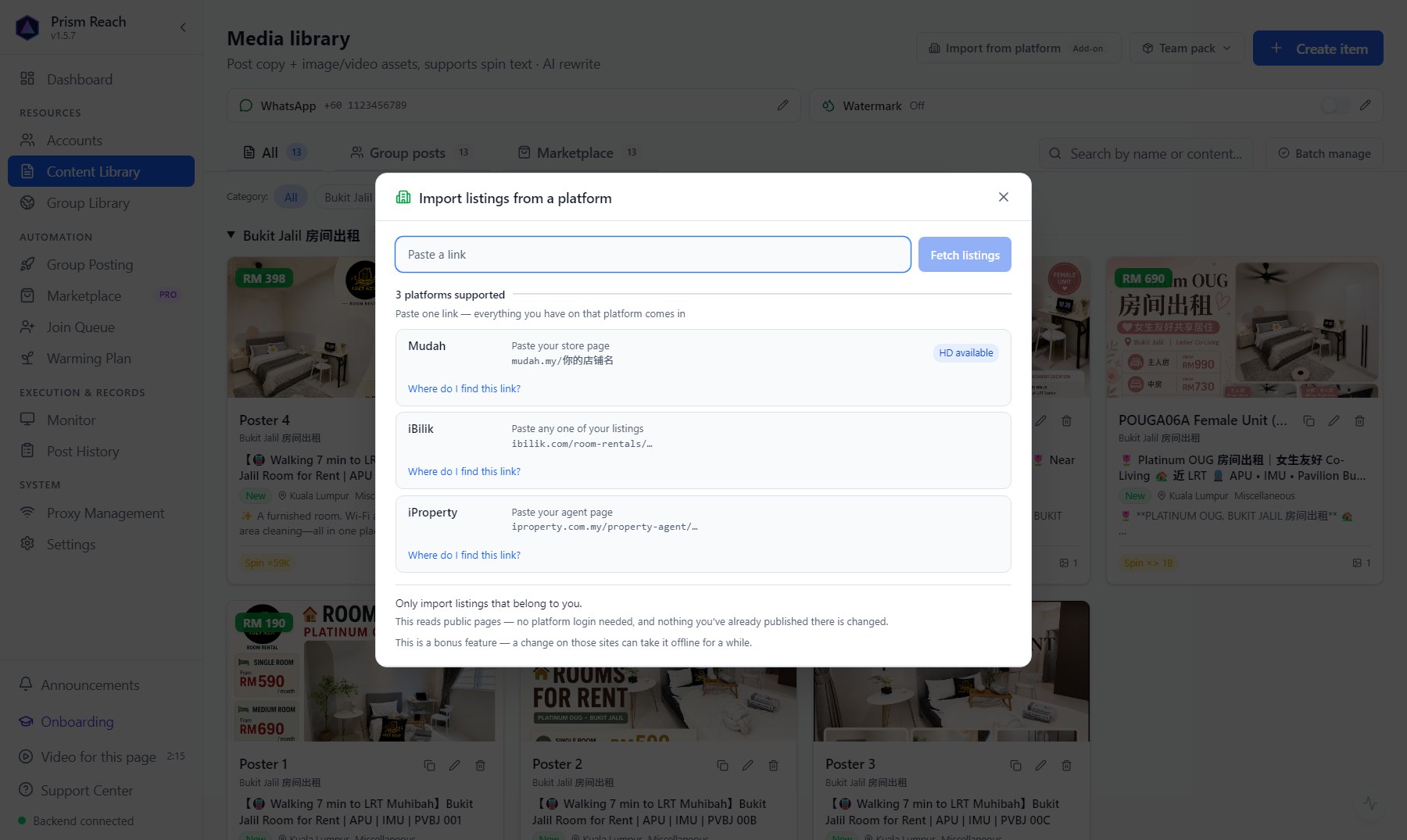
- Click 「Import from platform」.
- Paste one link: Mudah — your store page; iBilik — any one of your listings; iProperty — your agent page (a listing link works too). Each platform has a "Where do I find this link?" hint.
- 「Fetch listings」 → tick the listings you want → import.
Optional:
- Download HD original photos (some platforms).
- Also set up as Marketplace items: title, price and location filled in automatically (ticked by default).
The text keeps the platform's original wording; you can edit it in the Content Library or rewrite it with AI. Import again later: listings changed on the platform are marked "updated at source", unchanged ones are skipped — no duplicates.
2.4 Create a post by hand
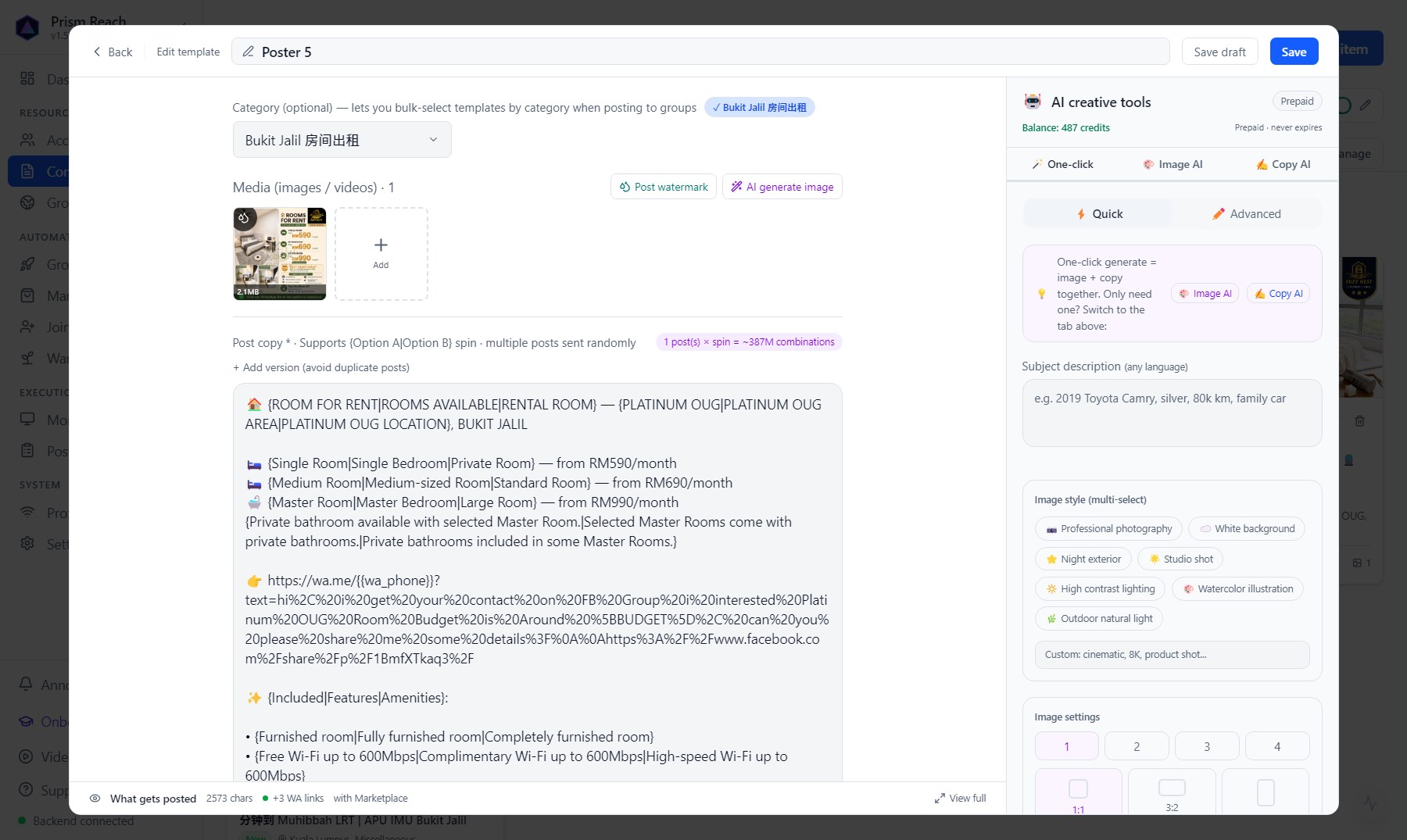
「Create item」 opens the editor:
- Category (optional): group your posts; campaigns can select a whole category at once.
- Media (photos / videos): drag or click to upload; the first is the cover, drag to reorder. One-click watermark and AI image generation are here too.
- Post copy: write it the way you normally post. Click 「Add version」 to write a few versions, used in turn or at random, so groups don't all get the identical post.
- 「What gets posted」 at the bottom previews exactly what goes out, including the WhatsApp link added at the end.
- Save vs Save draft: a draft is only a placeholder and can't be used for posting — click Save when it's ready.
2.5 「Quick add」 in the wizard vs 「Create item」 in the Content Library
Step 2 of a posting campaign lets you add a post on the spot with 「Quick add」. It exists so you don't have to leave the posting flow — it isn't a crippled Content Library.
| Can you do it? | Quick add (wizard) | Content Library · Create item |
|---|---|---|
| Photos (drag, reorder, pick cover) | ✓ | ✓ |
| Copy + one-click anti-duplicate (AI adds Spin Text) | ✓ | ✓ |
| WhatsApp (follow global / another number / save as default) | ✓ | ✓ |
| Preview of what gets posted | ✓ | ✓ |
| Multiple copy versions (Add version) | — | ✓ |
| Marketplace item details | — | ✓ |
| Watermark (per post / per photo) | — | ✓ |
| Categories and tags, landing-page variable, share link | — | ✓ |
| AI targeted edit / write from scratch / generate image | — | ✓ |
In a hurry for your first run, Quick add is plenty. Everything marked 「—」 can be added afterwards by editing the post in the Content Library — the Quick add dialog says so too.
2.6 Avoid duplicates: let the AI rewrite

Sending the exact same text to dozens of groups can look like spam to Facebook. The fix is to give each group a slightly different version:
- AI rewrite (「AI creative tools」 on the right of the editor):
- "Anti-duplicate rewrite": turns your text into several fully rewritten versions, or adds Spin Text (random word swaps) automatically.
- "Targeted edit": tell the AI in one sentence what to change ("make it friendlier, end with a limited-time offer"); you see before/after and decide.
- "Write from scratch": describe the listing/product and the AI writes it. It can also generate an image + copy in one go.
- Spin Text (writing it yourself): write
{Room for rent|Room available|Bilik sewa}and each post randomly picks one. The editor shows how many combinations you have. Usually just let the AI add these.
2.7 Watermark (three levels — the narrower one wins)
- Global default: 「Watermark」 at the top of the Content Library. Text or a logo image, with position, size, opacity and margin. Once on, new uploads are watermarked automatically.
- This post: set in the media area of the post editor — the whole item uses its own settings and the card is marked 「Custom watermark」.
- One photo: click a single photo and set it there — e.g. watermark the cover but not the interior shots.
Anything not set individually follows the level above.
2.8 Marketplace item details
For posts you'll list on Marketplace, expand 「Marketplace」 in the editor, enable it, and fill in:
- Item title (max 100 characters — longer is cut off; the editor warns you)
- Price and currency (MYR / USD / SGD / IDR / THB / PHP)
- Condition and location
Title, price and location all support Spin. The category is fixed to Miscellaneous for now. How to post: 07 · Marketplace Publishing.
2.9 Team packs: send posts to others, or import a pack you were given
The 「Team pack」 menu:
- Import team pack: import a
.zipcontent pack someone gave you (your company, your upline), photos included. Posts you've already imported are skipped, not overwritten. - Export team pack: only the Owner on the Team plan can export. Choose one:
- "For someone else" (agents, downlines, partners): the phone number in the text becomes a placeholder and share links are removed — after they import it, the WhatsApp link uses their own number. When unsure, pick this one — it never leaks your number.
- "For my own team": the same posts reused across your own machines; the number is kept.
Don't have Prism Reach yet?
The free plan needs no credit card — install it and follow this guide.