User Guide · 04
Join Queue: Joining Facebook Groups in Bulk Without Getting Banned
Join Facebook groups in bulk with the join queue: pick groups by area, type or tag, daily joins capped by account age, joining slowly during the day — and what to do with groups that ask questions.
Updated 2026-09-134 min readFor app v1.7.3
An account has to actually join a group before it can post there. The join queue has the app request to join for you, slowly, at a human pace.

4.1 Create a join queue
On the Join Queue page click 「Pick groups to join」 at the top right (the Group Library has the same button), three steps:
- Select target groups: all groups / filter by criteria / pick manually.
- Filter by criteria uses the same panel as picking groups in a campaign: tick areas and types (OR within a row, AND between area and type), or switch to 「Use my own tags」 — tick a tag to include the groups carrying it, and every tag in the 「must also have」 row is required. You can also add group purpose on top (postable discussion group, buy & sell group, Marketplace-ready, Page can post).
- Pick manually lets you search several keywords at once, with matches highlighted; groups one of your accounts is already in are hidden by default.
- If you've already filtered the Group Library, that filter is carried over.
- Select identity: personal accounts (all logged-in accounts, or specific ones), or Page identity. How many groups each account joins per day follows its age tier by default; you can lower it — raising it above the safe value shows a risk warning.
- Confirm and submit: shows target groups, executing accounts and estimated tasks. Groups the account is already in are skipped.
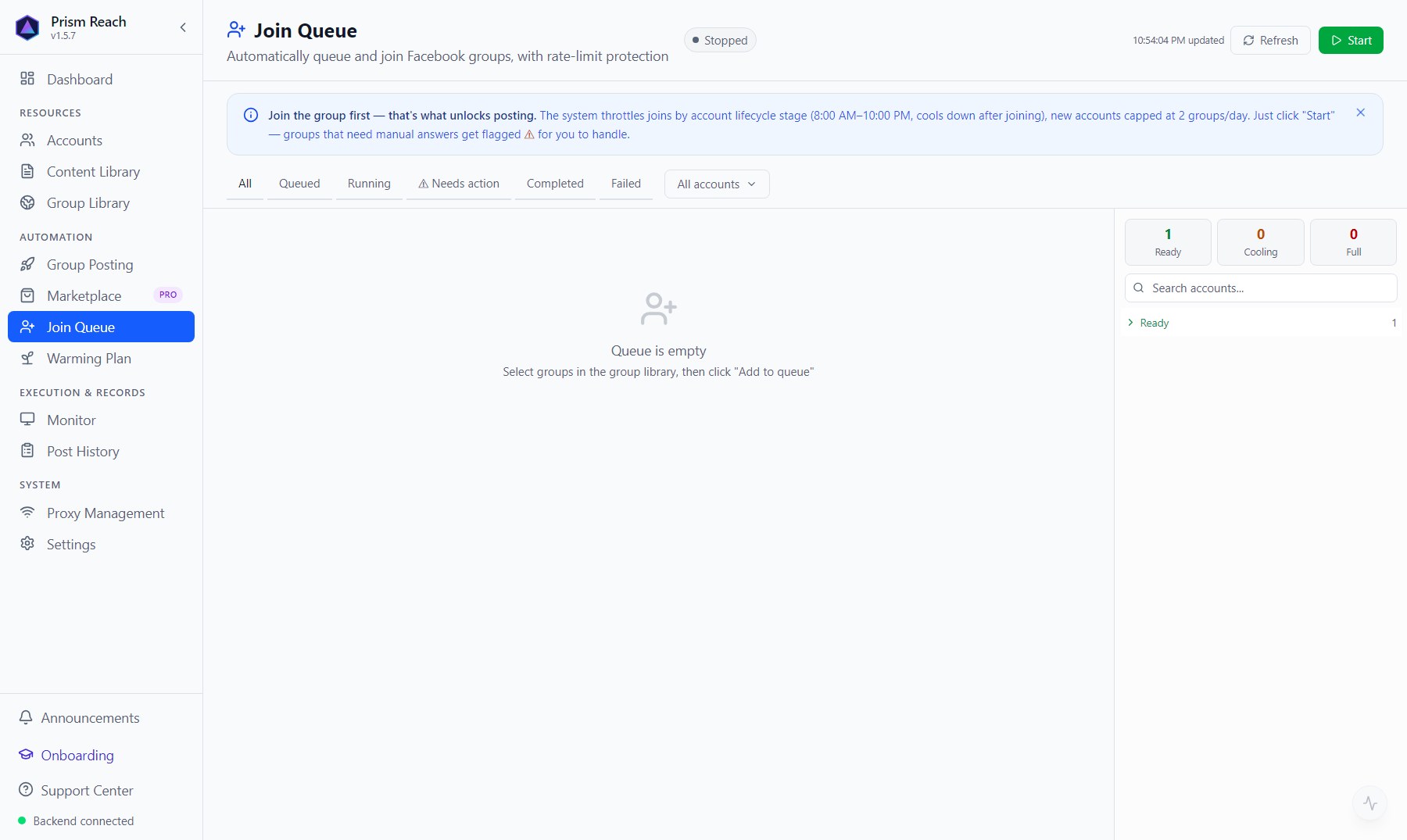
Then on the Join Queue page click 「Start」 and the scheduler begins.
4.2 Why it's so "slow"
Joining is deliberately slow and human-like, because joining lots of groups in a short time is a classic ban signal:
- Runs only between 08:00 and 22:00; outside that window tasks wait for the next day.
- Before joining, it browses the group page for 10–20 seconds like a person would.
- After one join, the same account waits a random 2–30 minutes before the next (newer accounts wait longer).
- Each account's maximum joins per hour / per day depend on its age:
| Account age | Per hour | Per day |
|---|---|---|
| Just registered (< 1 week) | 0 (blocked) | 0 |
| Brand new (1 week – 1 month) | 1 | 2 |
| Warming up (1 – 3 months) | 2 | 5 |
| Stable (3 – 6 months) | 3 | 8 |
| Mature & active (6+ months) | 4 | 12 |
| Restricted | 0 (blocked) | 0 |
- A newly joined group has a short cool-down (5–30 minutes depending on account age, longer for newer accounts) before it's used for posting — again, to avoid the obvious bot pattern of "join, then post straight away".
- After an app restart, interrupted tasks are queued again automatically; a banner tells you.
You can adjust this table under Settings → Safety & Limits → Group-join safety.
4.3 Task status and what needs you
Status: queued → running → done / failed / skipped.
Result: joined / pending approval / already a member / needs manual answers / error / group not found / cancelled.
「⚠ Needs manual answers」 is the one that most often needs you — many groups ask questions before letting you in, and the app can't answer them. That row has three buttons:
- 「Open browser to answer」: opens a visible browser window on that group's page; answer and submit yourself.
- 「Mark joined」: you've confirmed you're in some other way — mark it done.
- 「Requeue」: let the app try again.
4.4 Other controls on the page
- Top: start / pause the scheduler, refresh.
- Filters: all / queued / running / ⚠ needs action / completed / failed, and by account.
- Bulk actions: retry failed, dismiss failed records, cancel queued tasks, clean up completed history (records that need manual answers or are pending approval are protected from clean-up).
- On the right: each account's / Page's quota — joined today / limit, ready / cooling down / full for today.
4.5 After a successful join
Once an account joins a group, the app automatically checks whether it can post there and refreshes the group's member count and activity. After the cool-down, the group appears among the groups you can pick in campaigns.
Don't have Prism Reach yet?
The free plan needs no credit card — install it and follow this guide.