User Guide · 07
Marketplace Publishing: Automatic Facebook Marketplace Listings and Group Sharing
Automatic Facebook Marketplace publishing: prepare the post, account and region, create a daily repost campaign; why it deletes the old listing first; handling duplicate or rejected flags; splitting items across accounts.
Updated 2026-09-147 min readFor app v1.7.3
Marketplace publishing is separate from group posting: it lists items (listings) on Facebook Marketplace, then shares them to the buy & sell groups you're allowed to share to.
🎬 Four short videos for this chapter, in order:
- Your first Marketplace campaign (2:04) → 7.1, 7.2
- What a Marketplace run does each day (1:15) → 7.3
- When Facebook flags a listing (1:44) → 7.4, 7.5
- Splitting listings across accounts (1:17) → 7.7
7.1 Before you start

Three things to prepare: the post, the account, and the region.
First: enable Marketplace details on the post
In the Content Library, edit the post, expand 「Marketplace」 and enable it; fill in title, price, currency, condition and location (see 02 · Creating & Managing Content, 2.8). The post's photos and text become the item photos and description. When importing from Mudah / iBilik / iProperty, tick "also set up as Marketplace items" and these are filled in for you.
Second: check which groups the account can share to
Accounts → account card → group management → "Detect Marketplace groups" (or 「…」 → 「Batch sync + detect」 to run it with everything else). The app opens a draft listing, goes as far as the "share to groups" screen, records every group this account can share to, then discards the draft — nothing is published. That result is the pool of groups this account can use.
Third: set the Marketplace region inside Facebook
This is done in Facebook, not in the app: with this account, open Facebook Marketplace, click the location at the top right (or 「Location」 on the left), set it to your country and city, then Apply.
7.2 Create a campaign (3 steps)
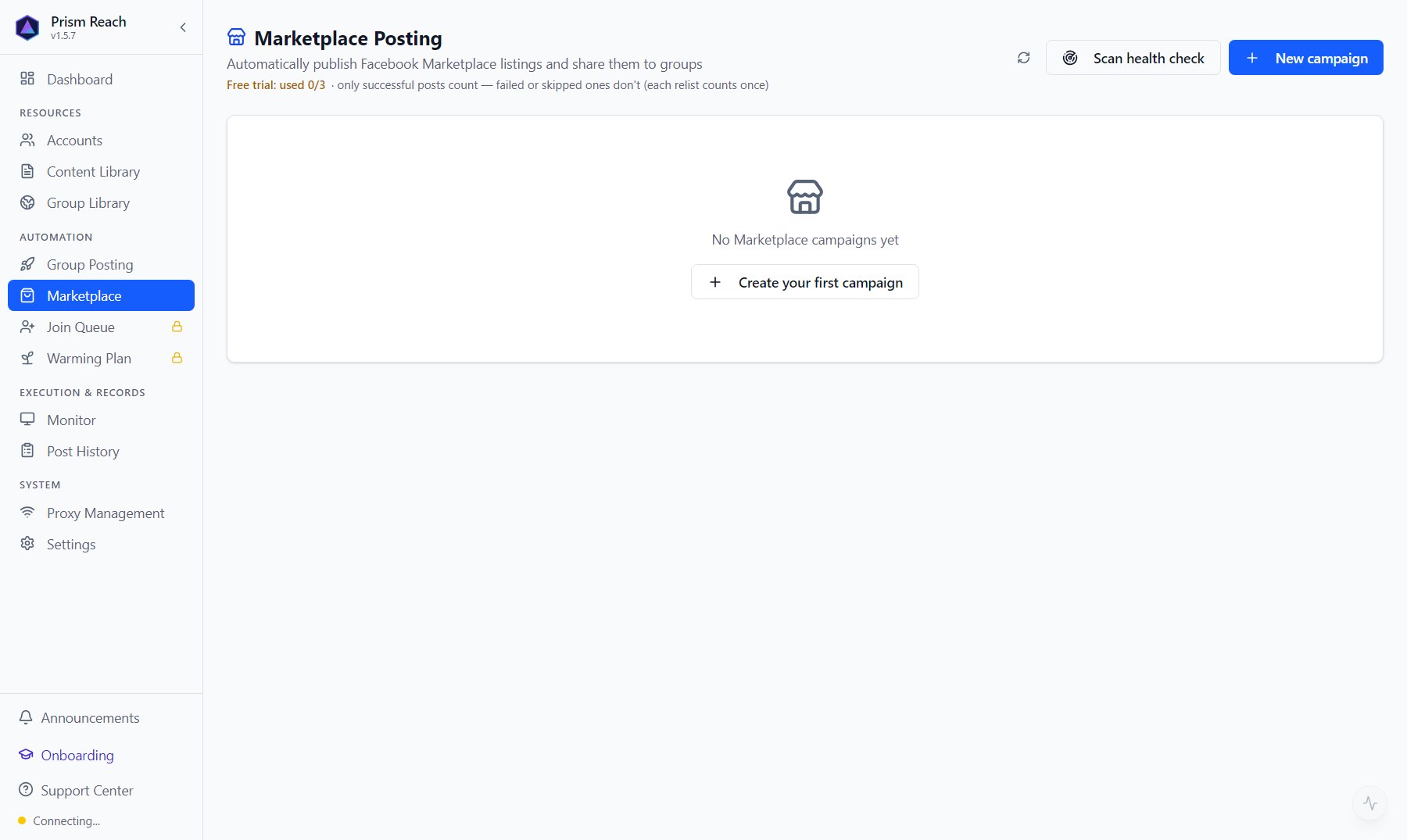
Marketplace page → 「New campaign」:
- Campaign: name it and choose one executing account (one account per campaign).
- Items: 「Add item」 — each item = a set of posts + the groups to share to; each post becomes one listing.
- Usually just select all groups: the list only contains groups this account can share to, billing is per listing not per group, and more groups means more reach.
- If the account's groups include ones unrelated to what you sell, narrow them first with Area / Type / Tags (area and type are pre-suggested from your post's copy), then adjust row by row.
- Note: ticking groups directly (including select all) saves that exact set; groups detected later need to be ticked again. Groups picked by Area / Type / Tags are recalculated on every run, so new ones are included automatically.
- Schedule: run now / once / recurring; headless mode (silent in the background).
Finish with "create and run now", "create and schedule", or "save only" to run it manually later.
7.3 Why it always deletes the old listing before posting the new one (important)

On every run, for each listing it does five things: check → delete the old one → list the new one → share to groups → log the result. Title, price and description rotate through the variants (Spin) written in the post.
Facebook is strict about "duplicate listings" (the same seller posting very similar items). If caught, the listing may not be shown — or the whole account gets rate-limited so new listings get almost no reach — until all duplicates are cleaned up.
So when the same post is "refreshed", the app always deletes the previous listing first, then posts the new one, and never leaves both up at once. Things to know:
- It's fully automatic — you don't manage listings.
- If deleting the old listing fails, the app still posts the new one (so the whole run doesn't get stuck), which can leave a duplicate — keep an eye on results and use the health check below to clean up.
- Change something between reposts (a photo, the wording, a small price change — Spin or AI rewriting makes this easy). Posting the identical content every time can still be flagged, even with delete-then-post.
- Old listings don't expire on their own; they're only deleted when the same post is about to be reposted.
- Don't put the same post in two campaigns for the same account — they'll fight over the same listing.
- Listings you post manually on Facebook are unknown to the app and aren't managed.
7.4 Scan health check / clean-up (manual tool)
「Scan health check」 at the top right of the Marketplace page: choose an account → scan. The app actually opens that account's "Your listings" page and reads all listings. The result shows the total, suspected duplicate groups, and "orphan" listings with no matching post; choose "keep only the newest in each group" or "delete the whole group", tick, then "clean up selected" to really delete them (cannot be undone).
This tool never runs automatically — it's for periodic check-ups. Run it when reach drops or you get a warning from Facebook.
7.5 When Facebook flags a listing

| Flag | What it means | What to do |
|---|---|---|
| Under review | Facebook is still checking a new listing | Nothing — wait for it to finish |
| Duplicate | The same account has two identical listings up | Delete the extra one; no need to change the content. The banner at the top of the Marketplace page deletes them all in one click |
| Rejected | Facebook ruled the content itself breaks its rules (it won't say whether it's the copy, photo or price) | The post is disabled in every campaign; rejected listings can't be deleted and keep the title taken — change the content and the title in the Content Library, then Restore |
Automatic pause: if an account gets 3 rejections within 30 days, the app pauses all Marketplace posting for that account and shows a red banner at the top of the page. That's protection, not a bug. After fixing the rejected posts, click 「Resume posting」 on the banner.
7.6 How it relates to group posting
Marketplace uses a separate engine and doesn't share queues or rate limits with group posting. They share one rule only: one browser per account at any moment (the account lock). So they never grab the same account at once, but each keeps its own pace — that's by design.
7.7 Splitting listings across accounts

Your accounts mostly belong to the same groups. If every account lists the same items, each group gets several identical shares a day — wasted, and likely flagged as duplicates.
Recommended setup:
- Give each account its own listings (start with a few, add more once it runs smoothly); one item lives on one account only.
- 2–3 times a week per account, not every day: one campaign per account, schedule → recurring → fixed time each week, then pick the days. Every run deletes and reposts, so daily is too often (the app warns you).
- Stagger the times: e.g. account A at 7 pm, B at 8 pm, C at 9 pm.
With many accounts, see the Marketplace playbook for a day-by-day layout.
Three accounts are usually enough; more accounts are for listing more items, not for posting the same item more often.
Don't have Prism Reach yet?
The free plan needs no credit card — install it and follow this guide.