User Guide · 15
Facebook Group Posting Playbook: How to Arrange Accounts, Groups and Days
You do 3 steps and the app does the rest: add accounts, match posts to groups, choose the days. How to act on the app's one-line message, how to split many accounts into two halves that take turns, three don'ts, and a reference table of daily limits.
Updated 2026-11-087 min readFor app v1.7.3
A short playbook for Prism Reach users: how to arrange your accounts, groups and days. You do 3 steps. The app does the rest.
- Add your accounts
- Match your post to groups
- Choose which days to post
The app handles: which account posts to which group, how many posts at a time, the gap between posts, and slowing down automatically if Facebook rate-limits you.
The screenshots show the app in Chinese. The buttons are in the same places in the English version.
15.1 Step 1: Add your accounts
In the app: Group Posting → New campaign. Tick as many accounts as you want to use.
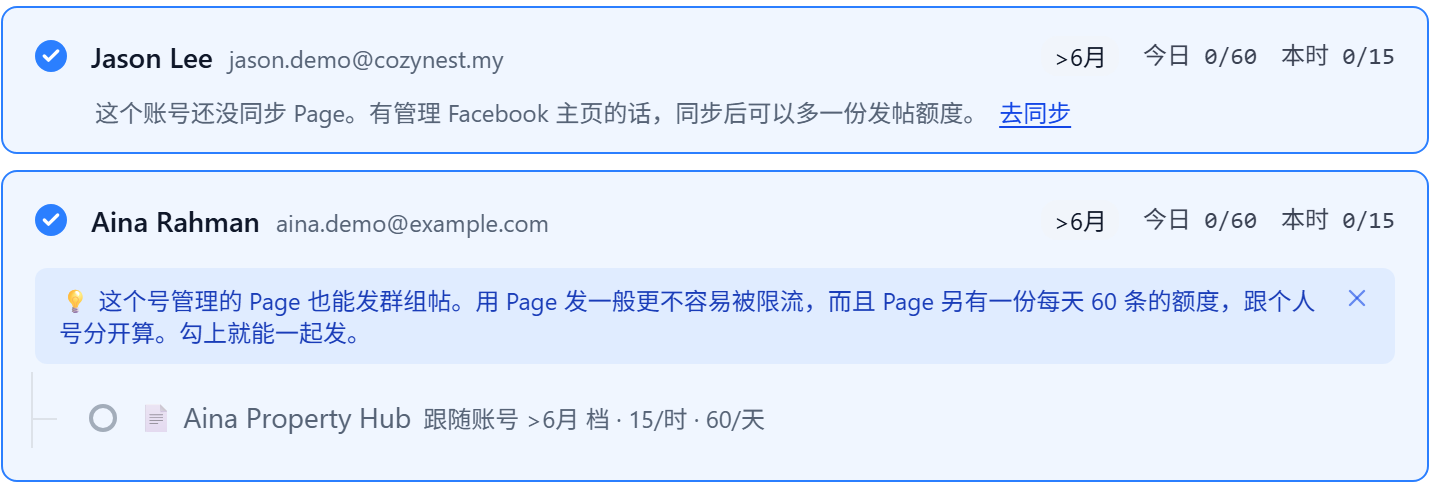
Two things to look at in the picture:
- Today 0/60: this account can post at most 60 times today. The app shows it for you.
- If an account has a Page under it, tick the Page to post with it too. A Page has its own quota, counted separately from the personal account.
How many days to cover 120 groups?
| Accounts used | Days to finish |
|---|---|
| 1 new account | 12 days |
| 1 older account | 2 days |
| 3 accounts | 1 day |
These numbers assume the daily maximum every day. Facebook rate limits can slow things down, so this is not a promise.
15.2 Step 2: Match your post to groups
The app picks suitable groups from your post.

It picks groups by the area and type in your post. Groups that join later and fit are added on the next round — no need to come back and edit.

This shows the most posts in this run (one post per group).
15.3 Step 3: Choose which days to post
If you don't have many groups, you don't need to post every day.

Run on these days: click to select. Select none = every day.
- Few groups (one round takes less than a day): choose Mon, Wed, Fri. Posting every other day is safer.
- Many groups (one day isn't enough): select none. It posts every day and carries on with the rest.
Keep your computer on during the posting days.
15.4 After you pick groups: read the app's one-line message
In the "Pick posts and groups" step, the app tells you under the groups whether everything fits. Whichever line you see, do this:
You see: "N groups selected. These accounts can cover them every day."
Don't run it daily. Choose Mon, Wed, Fri as the run days. Every other day is safer.
You see: "N groups selected. These M accounts can do about X posts a day; the rest take their turn over the next few days."
One day isn't enough, so the app carries on by itself. Nothing to do. To finish faster, add more accounts.
You see: "[Name] is rate-limited by Facebook for about N more hour(s)"
Let that account rest. The app uses your other accounts meanwhile and it recovers by itself when the time is up.
15.5 Many accounts? Split them in two
Split accounts and groups into two halves and take turns. This is a suggested setup. We haven't tested every case in the real app, so treat it as advice.
| Mon | Tue | Wed | Thu | Fri | Sat | Sun | |
|---|---|---|---|---|---|---|---|
| Campaign A (accounts 1·2·3, first half of groups) | ✅ | ✅ | ✅ | ✅ | |||
| Campaign B (accounts 4·5·6, second half of groups) | ✅ | ✅ | ✅ |
Each group gets a post every other day. Sunday is when customers are free, so group A posts one extra day; A's groups get posts on Sunday and Monday back to back.
How to set it up: split your groups into two halves and create two campaigns. A gets one set of accounts plus the first half of the groups, with run days Mon, Wed, Fri, Sun. B gets the other accounts plus the second half, with run days Tue, Thu, Sat. Never tick the same groups in both campaigns, or the groups get posts every day.
Keep in mind:
- Each account must join its own half of the groups first. It can't post to groups it hasn't joined.
- Quota doesn't build up on rest days. Splitting is for safety, not for posting more.
- 6 accounts needs the Pro plan (Starter allows up to 3).
15.6 Optional: post to your Page first and use its link
If you want customers to open the full post and tap a WhatsApp button, the app can post to your Page first, then put that Page post's link in the group post.
This is on the last step of the campaign. It only runs if you tick it, and it is off by default. It only appears when some of the posts you are about to send do not have a Page link yet.
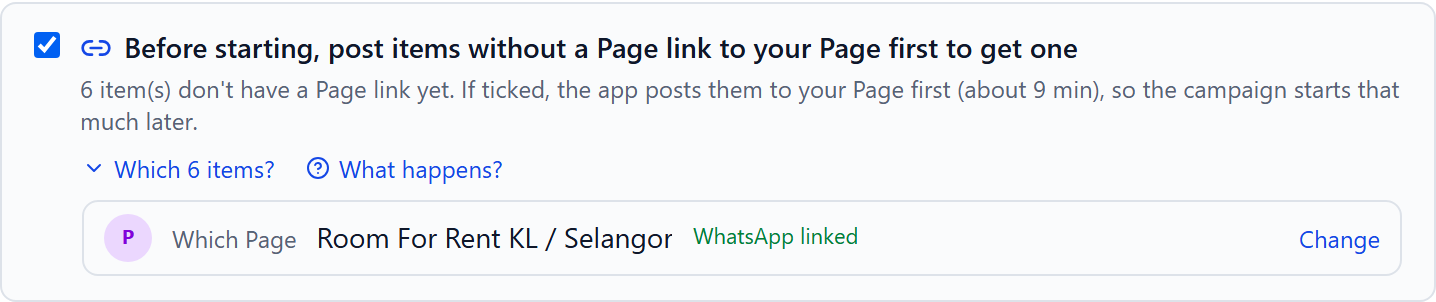
How:
- On the last step, tick "Before starting, post items without a Page link to your Page first to get one".
- Pick a Page. The Page needs WhatsApp connected first. Without it the post can't get the WhatsApp button, so the app won't fetch a link. There is a "Link now" button next to it.
- Run the campaign. The app uses the account that owns the Page to post each item to the Page, gets the link, saves it into the post, then starts posting to groups.
A Page post with its link looks like this. Customers open it to see the full photos and text, and the WhatsApp button is at the bottom right:
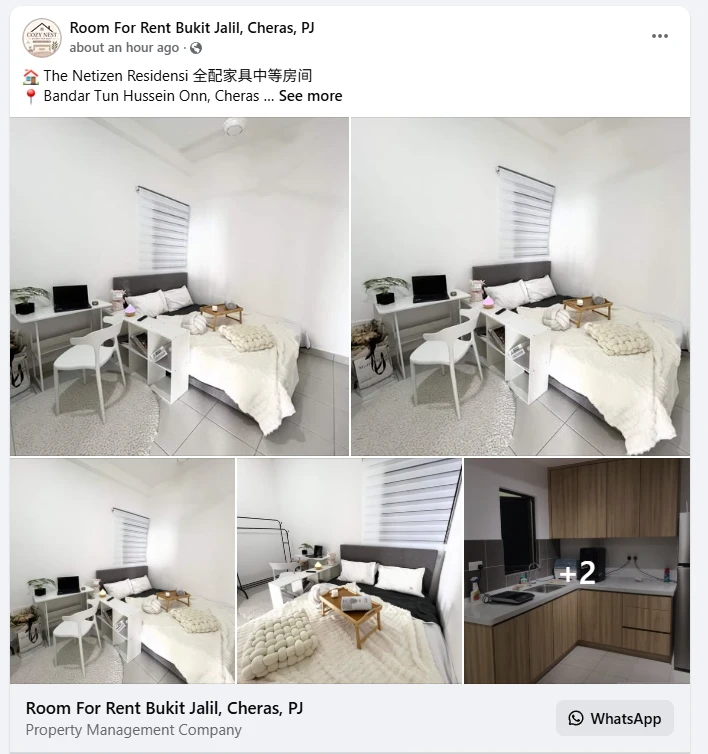
Good to know:
- It takes a while. The app shows the estimated minutes under the tick box. The campaign starts that much later, and that account can't post to groups while links are being fetched.
- There is a cap per run. Anything over the cap is posted to groups as usual, without a link.
- Group posts look different. Groups show the Page post's preview card instead of the image. To use the image again, change it back in the Content Library.
- A miss doesn't stop the campaign. That item is still posted to groups without a link, and the result marks it.
15.7 Three don'ts
- Don't let three accounts post to the same groups. The same post from three people in one night looks like spam.
- Don't post to the same groups every day. Leave a day or two. Post too often and admins may remove you, and you lose that group.
- Don't push a new account hard. Warm a new account up for a week first (see 5 · Warm-up Plan). A new account can only post a little each day.
15.8 Reference: all the numbers
Daily maximum per account (app default)
| Account age | Max per day |
|---|---|
| Under 1 week | 0 (warm up first) |
| 1 week – 1 month | 10 |
| 1 – 3 months | 30 |
| 3 – 6 months | 45 |
| Over 6 months | 60 |
Quota is a rolling 24-hour window. Rest days don't build up credit.
Pages have their own quota. A personal account and each of its Pages are counted separately. A Page uses the age tier of its personal account. One account + one Page = double. A Page must join those groups first. Personal accounts hit limits more easily, so leave some room.
Accounts allowed per plan
| Free | Starter | Pro | Team |
|---|---|---|---|
| 1 | 3 | 20 | 60 |
These are app defaults and adjust automatically. For more on limits and safety, see 13 · Will My Account Get Banned?. For every campaign option in detail, see 6 · Configuring Posting Campaigns.
Don't have Prism Reach yet?
The free plan needs no credit card — install it and follow this guide.