User Guide · 09
Settings: License Activation, Safety Limits, Execution Engine, Moving Computers
All six Settings tabs explained: license activation and plan usage, posting and join safety limits, parallel accounts and posting order, landing-page tracking, launch at login, and moving to a new computer with a migration pack.
Updated 2026-09-124 min readFor app v1.7.3

Settings is at the bottom of the left sidebar, with 6 tabs.
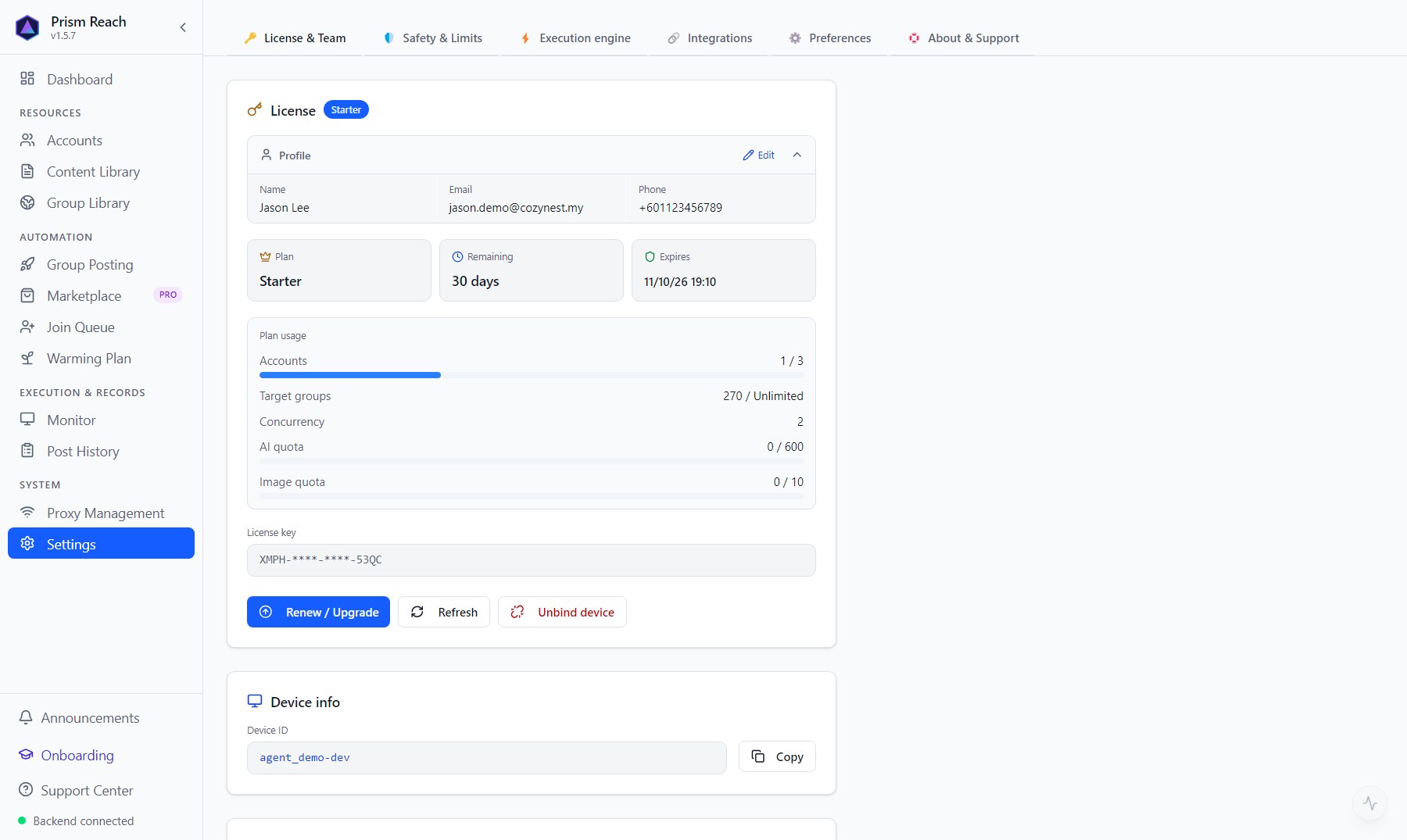
9.1 License & Team
- Plan card: your details, current plan, days remaining, expiry date; plan usage (accounts, groups, parallel accounts, this month's AI credits, this month's image cap).
- Activate / upgrade: paste your license key; it first shows which plan, how many days and the expiry date, then confirms with the server in a few seconds.
- The key is bound to this computer. To move to another computer, first 「Unbind device」 here, then activate on the new one.
- Referral rewards, team members and device management (Team plan) are on this tab too.
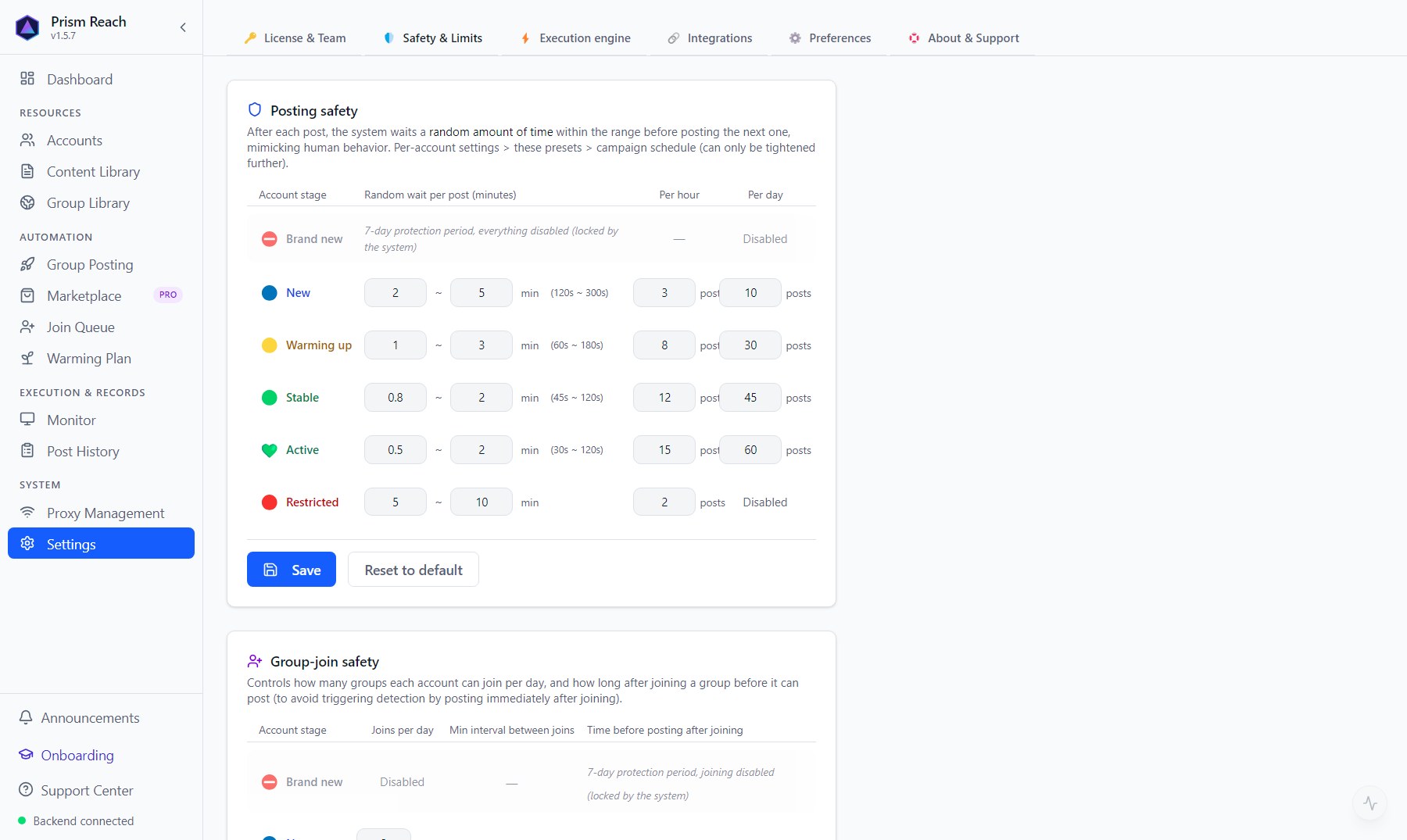
9.2 Safety & Limits
- Posting safety: for each age tier, the random wait after each post (minutes) and the maximum posts per hour and per day. The "just registered" tier is a 7-day protection period — everything disabled, locked by the system.
- Group-join safety: for each age tier, joins per day, the minimum gap between joins, and how long after joining before a group is used for posting.
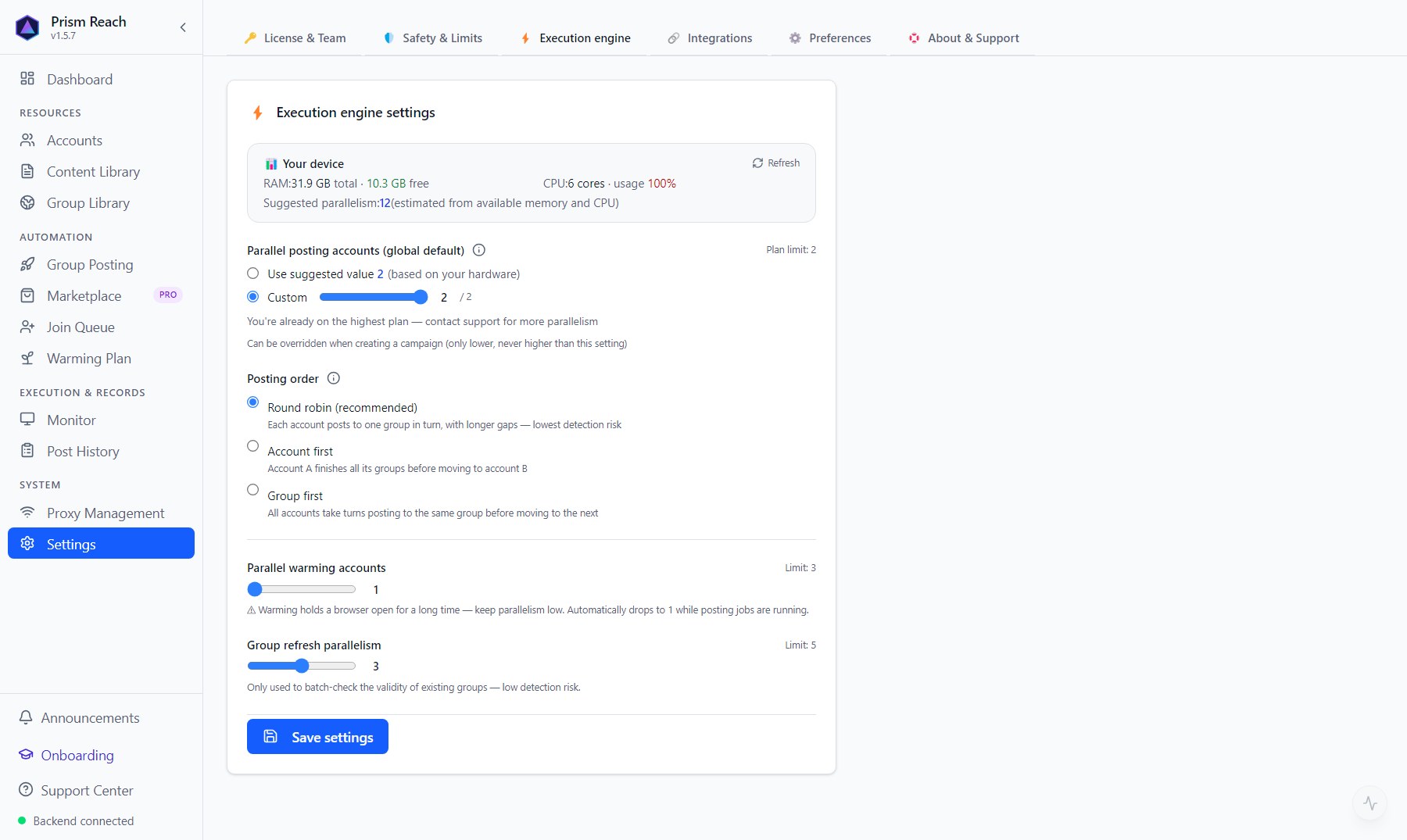
9.3 Execution engine
- Your device: memory and CPU usage, with a suggested number of parallel accounts for your computer.
- Parallel posting accounts: use the suggestion or set your own, up to your plan's limit (Free runs one account at a time; Starter and above can run in parallel). In parallel, accounts overlap their waiting time, nearly doubling speed.
- Posting order: 「Round robin」 (recommended) — each account takes turns posting to one group, longest gaps, lowest risk; 「Account first」 — one account finishes all its groups before the next; 「Group first」 — all accounts post to the same group before moving on.
- Parallel warming accounts: warm-up keeps a browser open for a long time, so keep this low; drops to 1 automatically while posting jobs run.
- Group refresh parallelism.
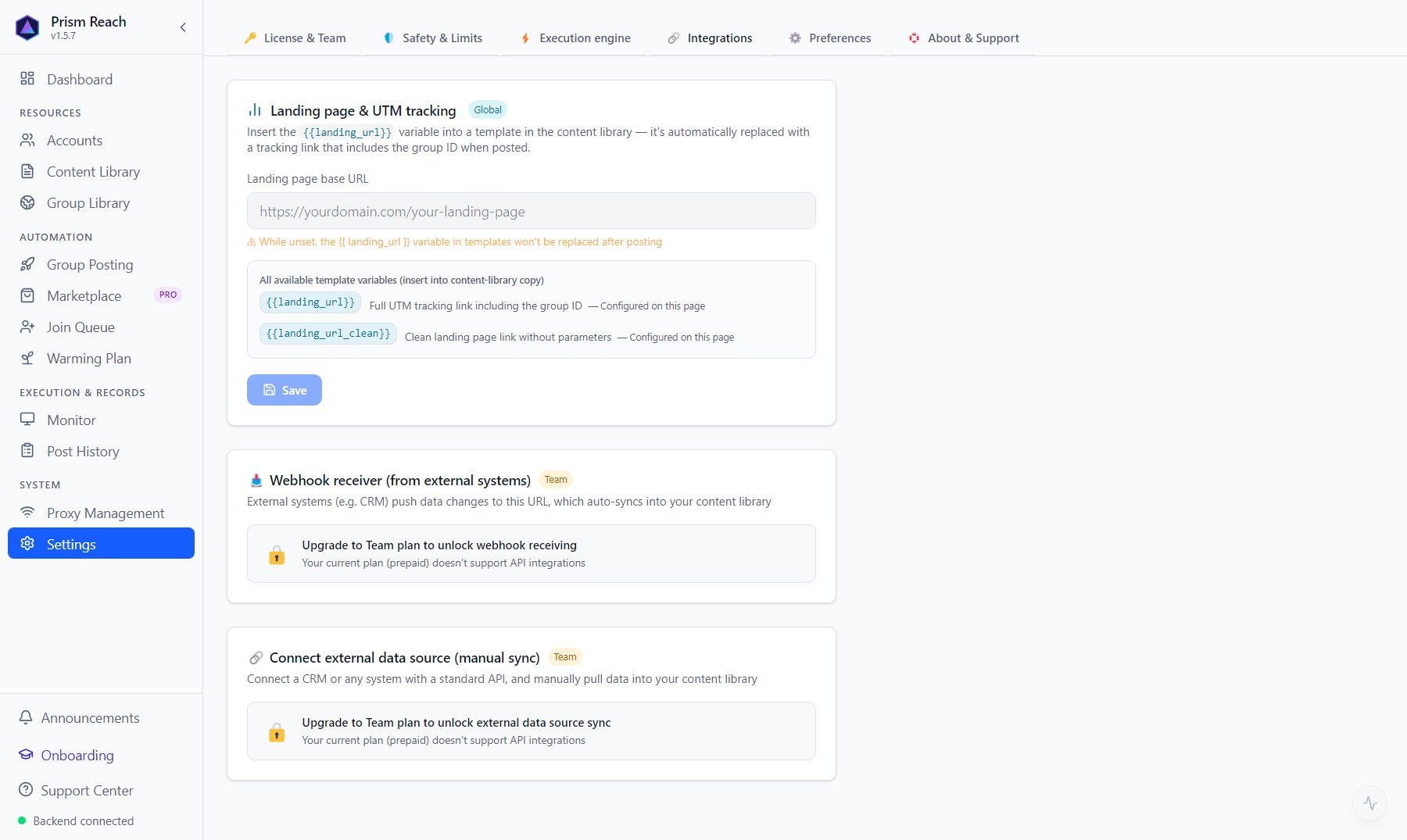
9.4 Integrations
- Landing page & UTM tracking: enter your landing page URL and put
{{landing_url}}in a post; when posting it's replaced with a tracking link that includes the group ID, so you can see which group brought clicks. - Webhook and external data source: sync data from a CRM or other system into your Content Library (Team plan).
9.5 Preferences
- Font size (small / medium / large).
- Launch at login: recommended. After a restart the app starts in the background by itself, so scheduled posts aren't missed.
- Privacy: when the app hits an error it sends us an error report so we can fix it (can be turned off).
9.6 About & Support
Moving to another computer
Unbinding only frees the license key — your data does not follow you to the new computer. To bring it across, use these two buttons:
- [Old computer] Click 「Export」 and save the
.pxpackfile. It packs your accounts, group library, content library, posting campaigns, proxies and global settings. - [New computer] Activate with the same license key first, then click 「Import」 and pick that file. When it finishes you'll see, per category, how many items were added and how many were skipped as already present.
Other
Version and release notes, device info, WhatsApp support (Mon–Sat 9:00–22:00, Malaysia time), purchase / renewal enquiries.
9.7 Two settings that aren't on this page
- Default WhatsApp number: at the top of the Content Library — see 02 · Creating & Managing Content.
- Proxy IPs: 「Proxy Management」 in the left sidebar — see 01 · Account Management & Login.
Don't have Prism Reach yet?
The free plan needs no credit card — install it and follow this guide.